Next.js 15 Setup Error: Node Version Mismatch (and How to Fix It)
Freshers are hitting a common Next.js 15 install error due to Node.js version mismatch. Here’s the exact error, why it happens, and how to fix it step-by-step.
Every fresher I spoke to this week—across India, including Pune—ran into the same wall: Next.js 15 refusing to install or run because of a Node.js version mismatch. If you’re seeing cryptic errors right after `npx create-next-app@latest`, you’re not alone.
Let’s break down exactly what’s happening, why, and how to get your Next.js 15 project running—without wasting hours on outdated tutorials.
What the Error Looks Like
Here’s the most common symptom:
You try to scaffold a new Next.js 15 app, and the terminal spits out something like:
```
ModuleNotFoundError: The current Node.js version is not supported. Next.js 15 requires Node.js 20 or later.
```
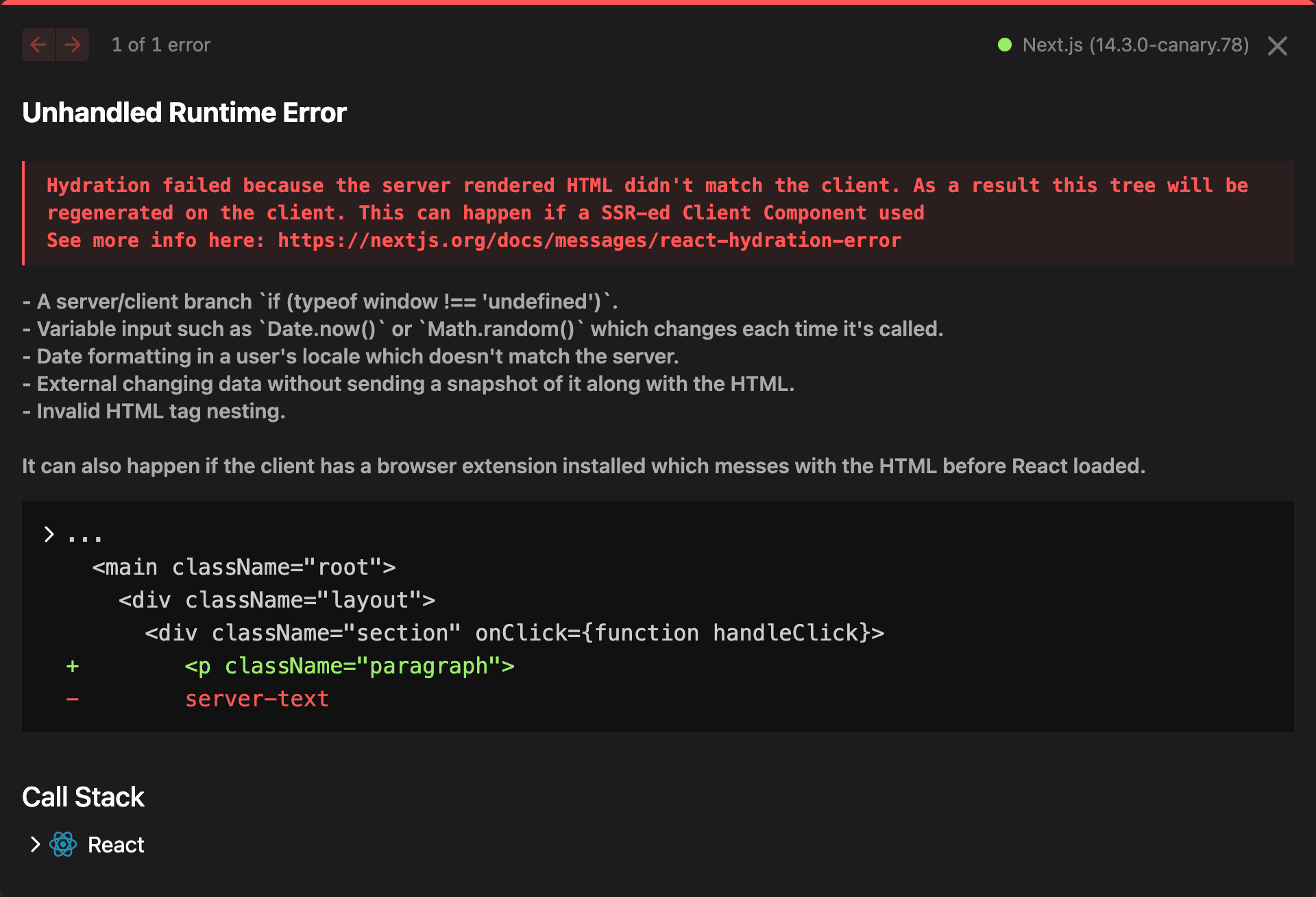
Or, the install fails silently, and `npm start` throws unexpected errors or warnings about unsupported Node.js versions.
Source: Next.js 15 Complete Beginner Guide 2026 (First App)
Why This Happens
Next.js 15 requires Node.js 20 or later. Many freshers (especially on college lab machines or older laptops) are still running Node.js 18 or even 16.
Most online tutorials and YouTube guides are outdated—they don’t mention the new requirement, so you end up following steps that simply won’t work with Next.js 15.
Exact Fix Steps: Pin Your Node.js Version
Here’s how to guarantee your setup works for Next.js 15:
- Check Your Current Node.js Version
```sh
node --version
```
If you see anything less than `v20.0.0`, you need to upgrade.
- Install Node.js 20+
- Windows/macOS:
Download the latest LTS version from nodejs.org.
- Linux/WSL:
```sh
sudo apt-get update
sudo apt-get install -y nodejs npm
```
Or, use nvm to manage versions:
```sh
curl -o- https://raw.githubusercontent.com/nvm-sh/nvm/v0.39.7/install.sh | bash
nvm install 20
nvm use 20
```
- Verify the Upgrade
```sh
node --version
```
Should output `v20.x.x` or higher.
- Create Your Next.js 15 App
```sh
npx create-next-app@latest
```
Follow the prompts.
- Start the Dev Server
```sh
cd your-app-name
npm run dev
```
Common Wrong Turns Freshers Take
- Ignoring the Version Warning:
Some skip the error and try to run the app anyway. This leads to weird runtime bugs or missing features.
- Following Outdated Tutorials:
Many guides still use Node.js 16/18. Always check the date and version in any tutorial.
- Partial Upgrades:
Upgrading Node.js but not restarting the terminal/session—so the old version is still active.
- Mixing Global and Local Installs:
Installing Node.js globally, but running `npx` or `npm` in a shell that still points to the old version.
Verify It Worked: Quick Checklist
- `node --version` returns `v20.x.x` or higher.
- `npx create-next-app@latest` completes without errors.
- `npm run dev` starts the Next.js dev server at `http://localhost:3000`.
- Visiting `http://localhost:3000` in your browser shows the default Next.js 15 welcome page.
- No red error messages about Node.js version in the terminal.
This week, do this
- Check and upgrade your Node.js version before starting any new Next.js 15 project.
- Ignore outdated setup guides—always confirm the version requirements.
- If you’re stuck, don’t waste hours: get help from mentors who’ve solved this exact problem.
Ready to get unstuck and build job-ready projects?